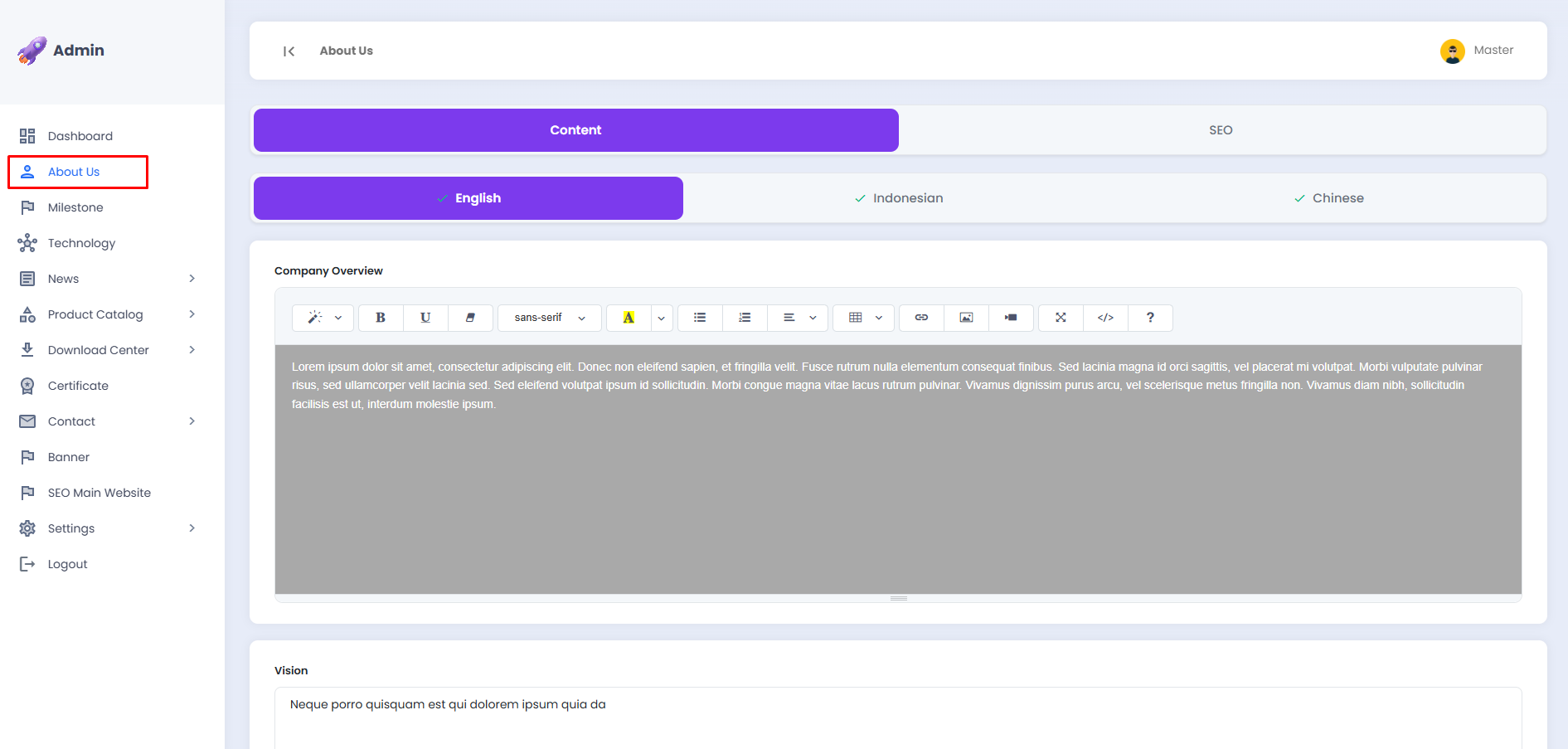
About Us
This page is used to manage the content displayed on the About Us page of the landing page, ranging from the company description to the vision and mission statements. The content can be customized for each available language.
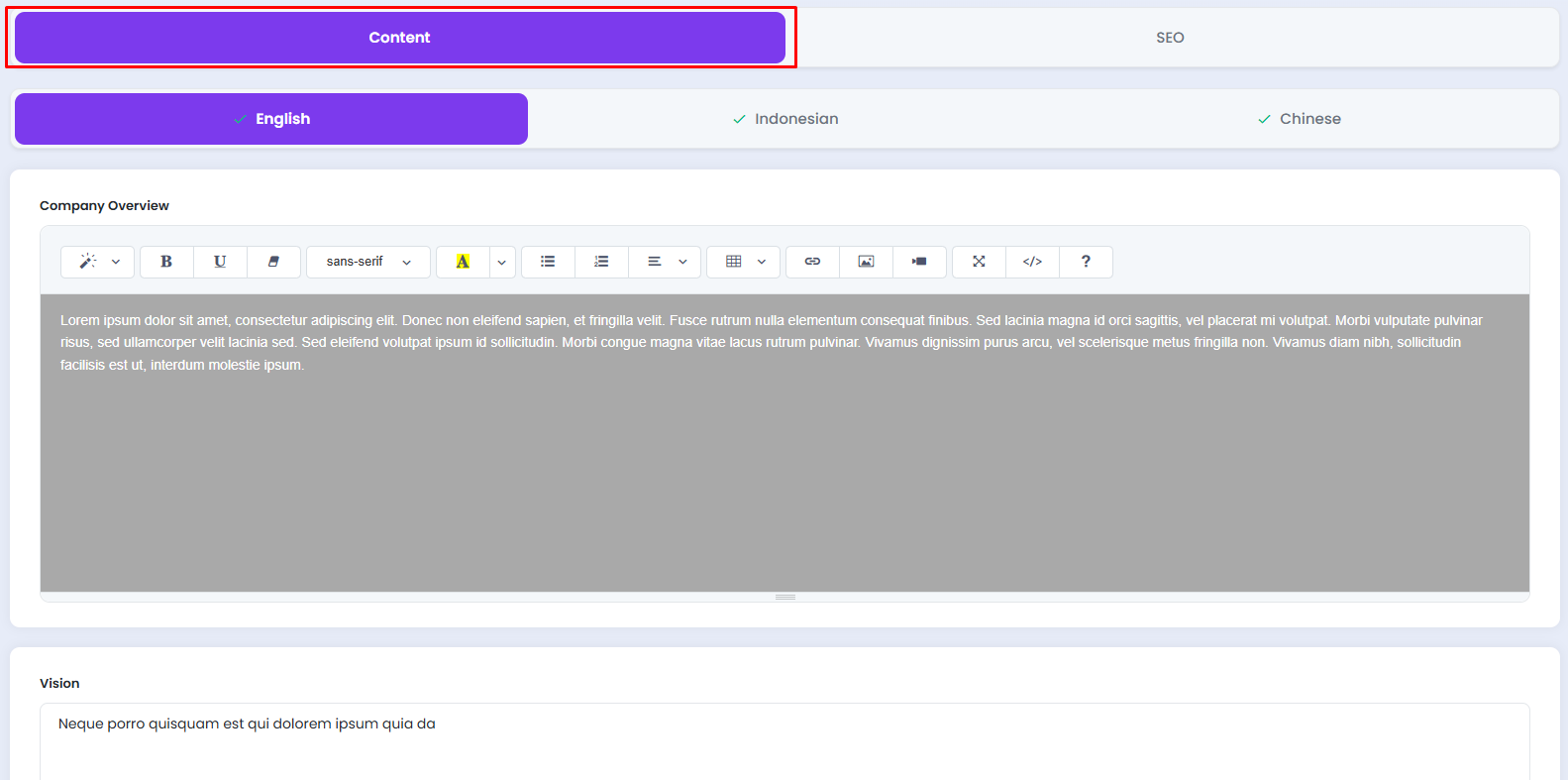
📄 Content Tab
On the About Us page, there are two main tabs: Content and SEO. Click the Content tab to begin managing the content that will be displayed on the landing page.
A. Selecting a Language
The About Us content can be configured in multiple languages. Click the desired language tab to adjust the content accordingly.
- English, content in the English language
- Indonesian, content in the Indonesian language
- Chinese, content in the Mandarin language

Please ensure that you fill in the content for every available language to maintain a consistent display across all language versions of the landing page.
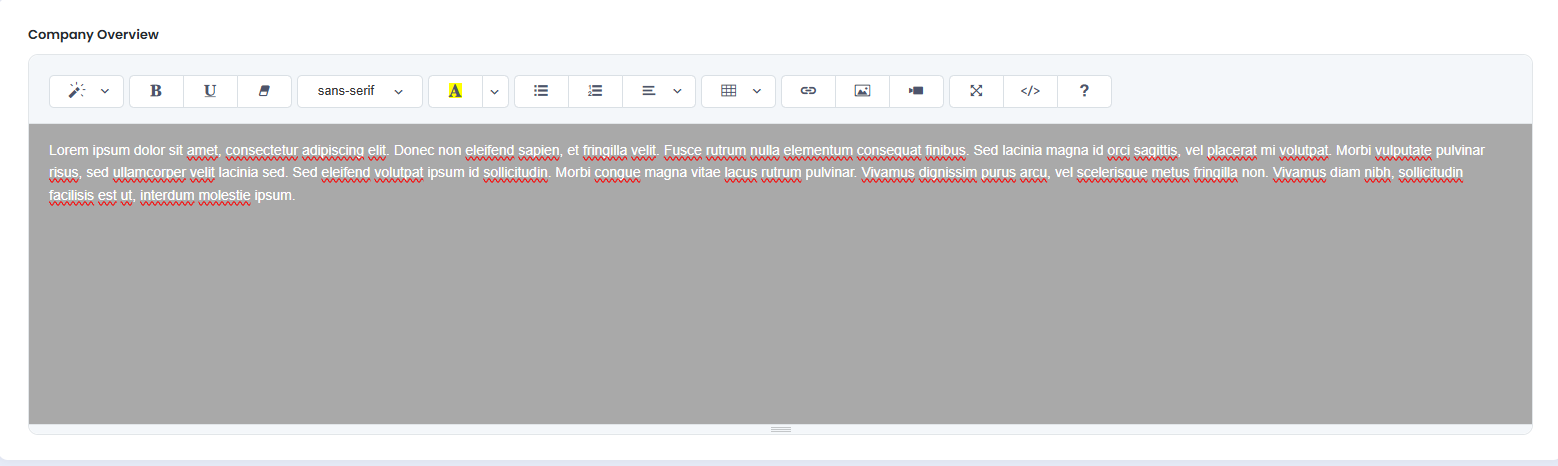
🏢 Company Overview
This section is used to enter the general company description displayed on the About Us page.
- Click the text area in the Company Overview field.
- Write or update the company description as needed.
- Use the editor toolbar to format the text, such as Bold, Italic, text color, and other formatting options.
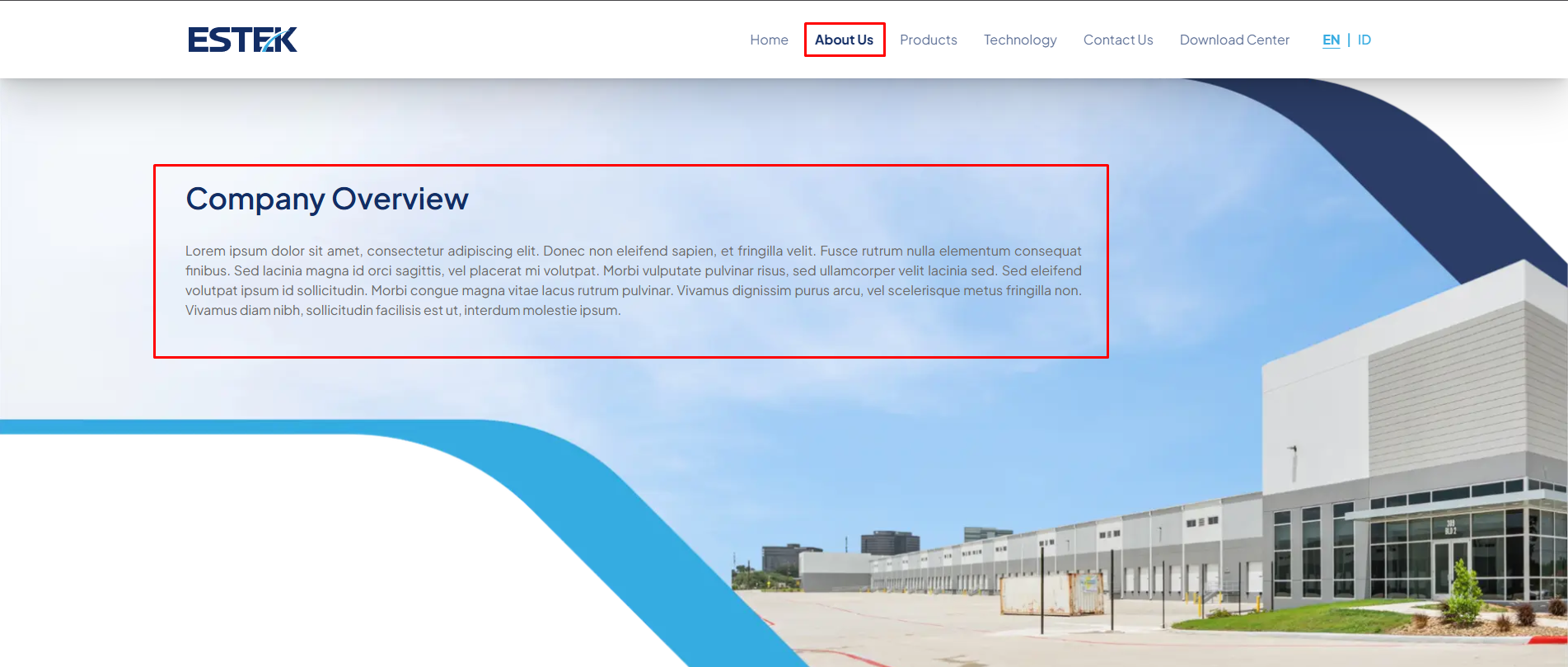
The following is the Company Overview as displayed on the landing page:
Utilize the formatting features in the editor toolbar to make the text more structured and easier to read for visitors.
🎯 Vision & Mission
This section is used to manage the Vision and Mission statements along with their respective bullet points as displayed on the landing page.
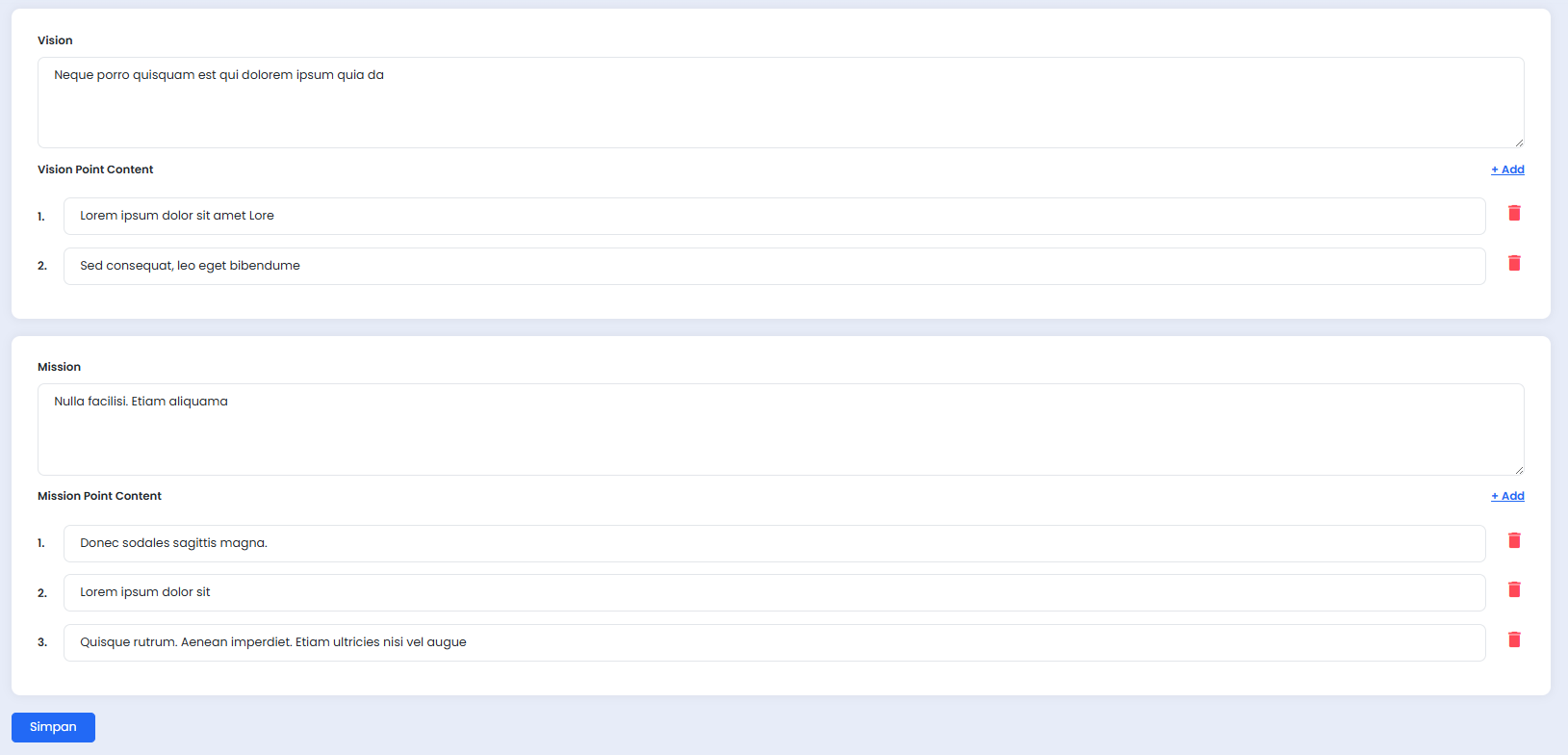
A. Updating the Vision & Mission Text
- Click the Vision field and enter the main vision statement of the company.
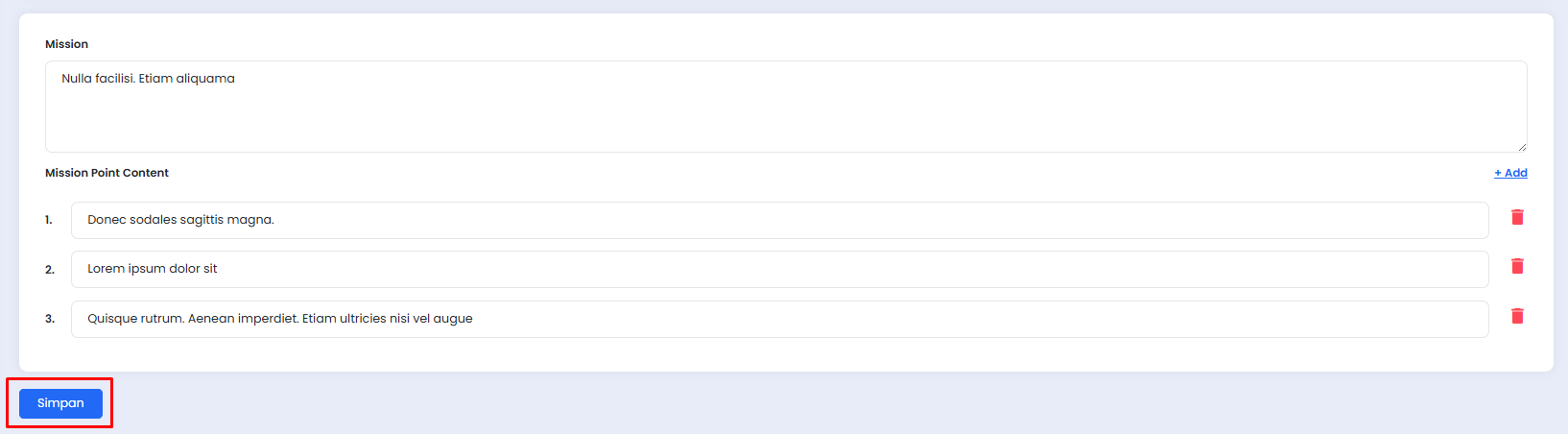
- Click the Mission field and enter the main mission statement of the company.
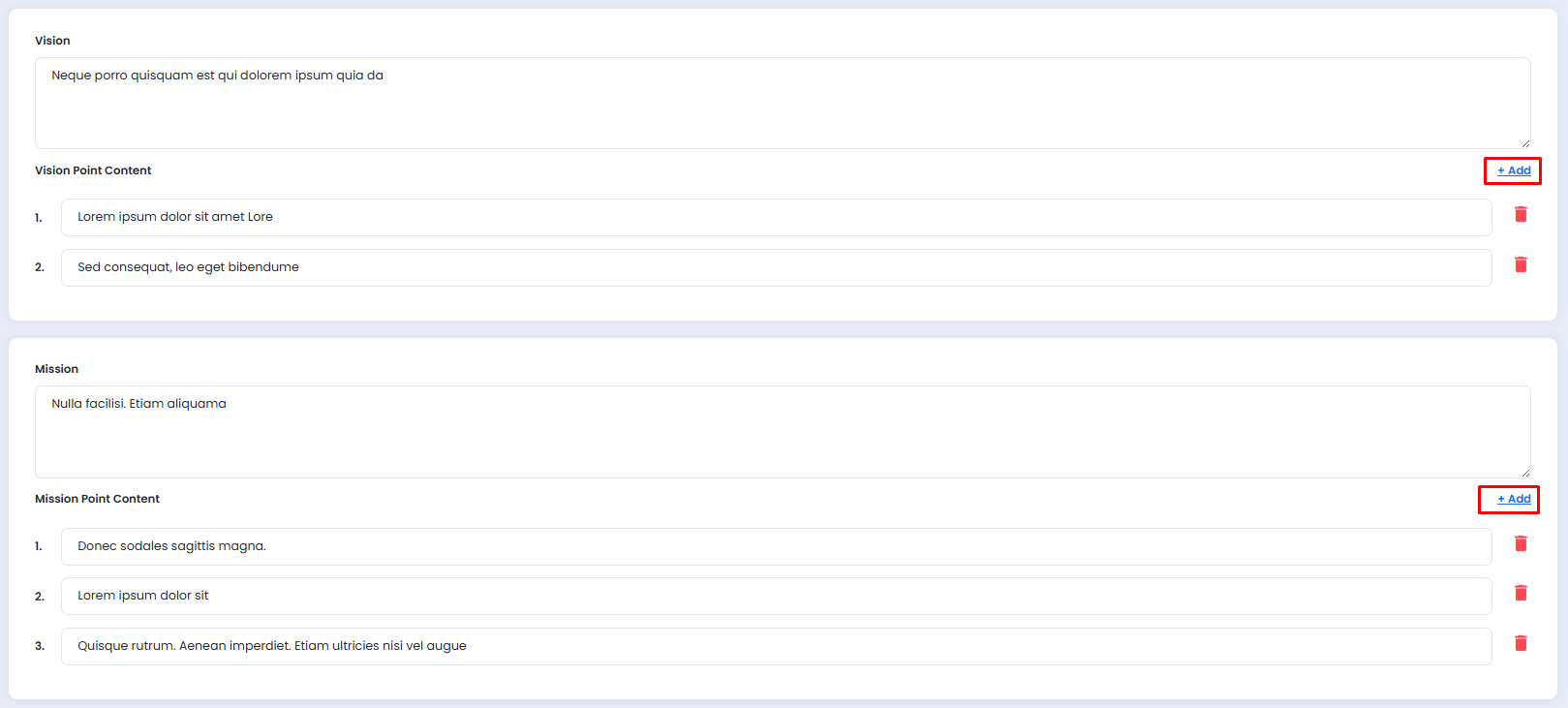
B. Adding a List Point
- Click the + Add button to the right of the Vision Point Content or Mission Point Content label.
- A new input row will appear automatically.
- Enter the desired point in the provided row.
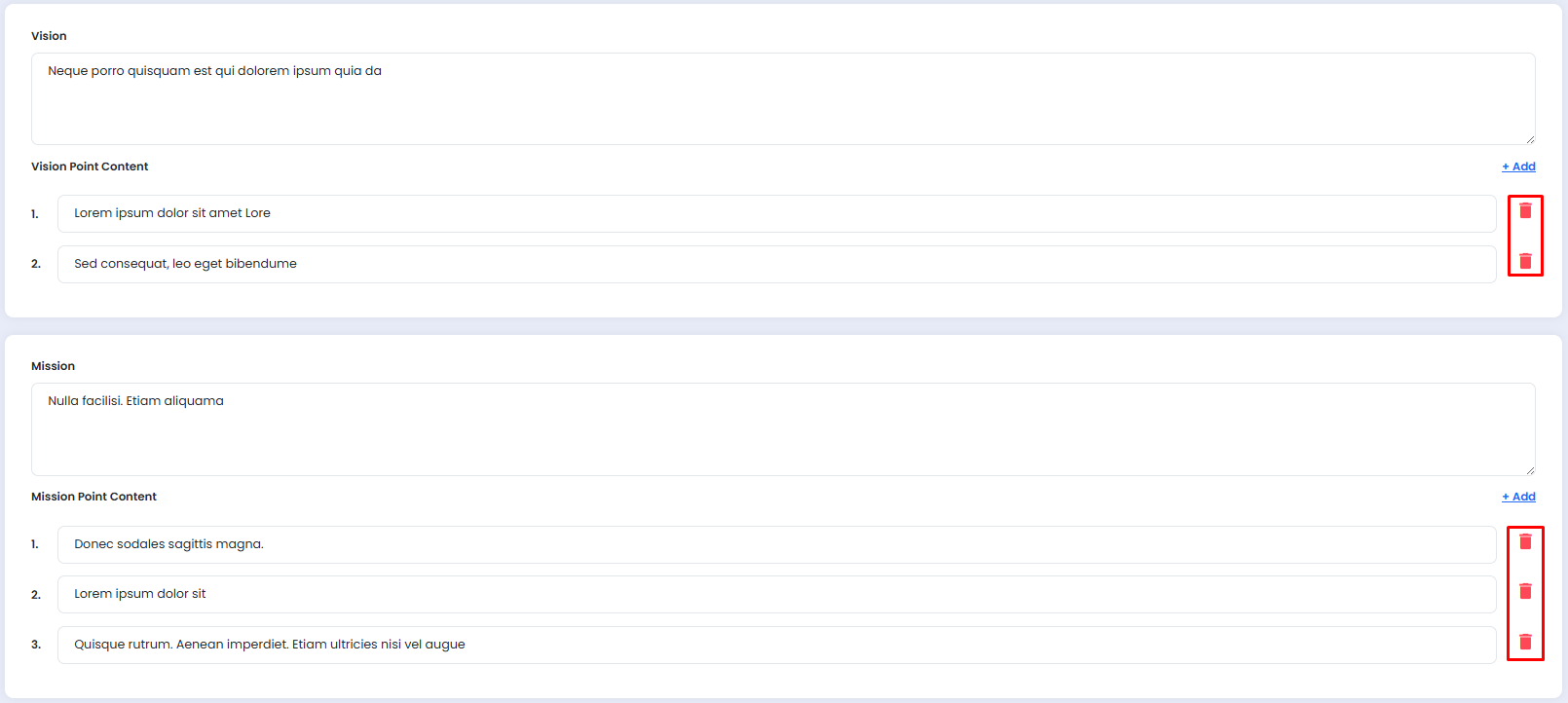
C. Removing a List Point
- Click the 🗑️ delete icon (red) to the right of the point row you wish to remove.
- The row will be immediately deleted.
The following is the Vision & Mission section as displayed on the landing page:
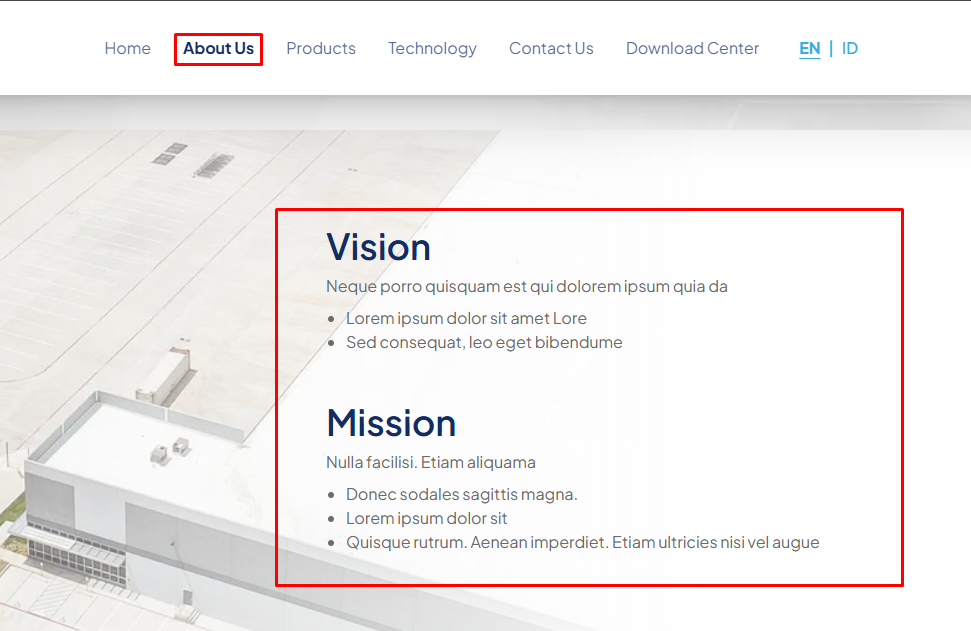
Please ensure that at least one point exists in both Vision Point Content and Mission Point Content before saving, to prevent empty sections from appearing on the landing page.
💾 Saving Changes
Once all content modifications are complete, click the Save button at the bottom of the page to apply all changes.
The Save button applies to all changes made across all active language tabs.