Banner
The Banner menu is used to manage the banner display that appears as a slider on the main page of the landing page. Each banner is equipped with an image, name, short description, link buttons, and a status to control whether the banner is displayed or not.
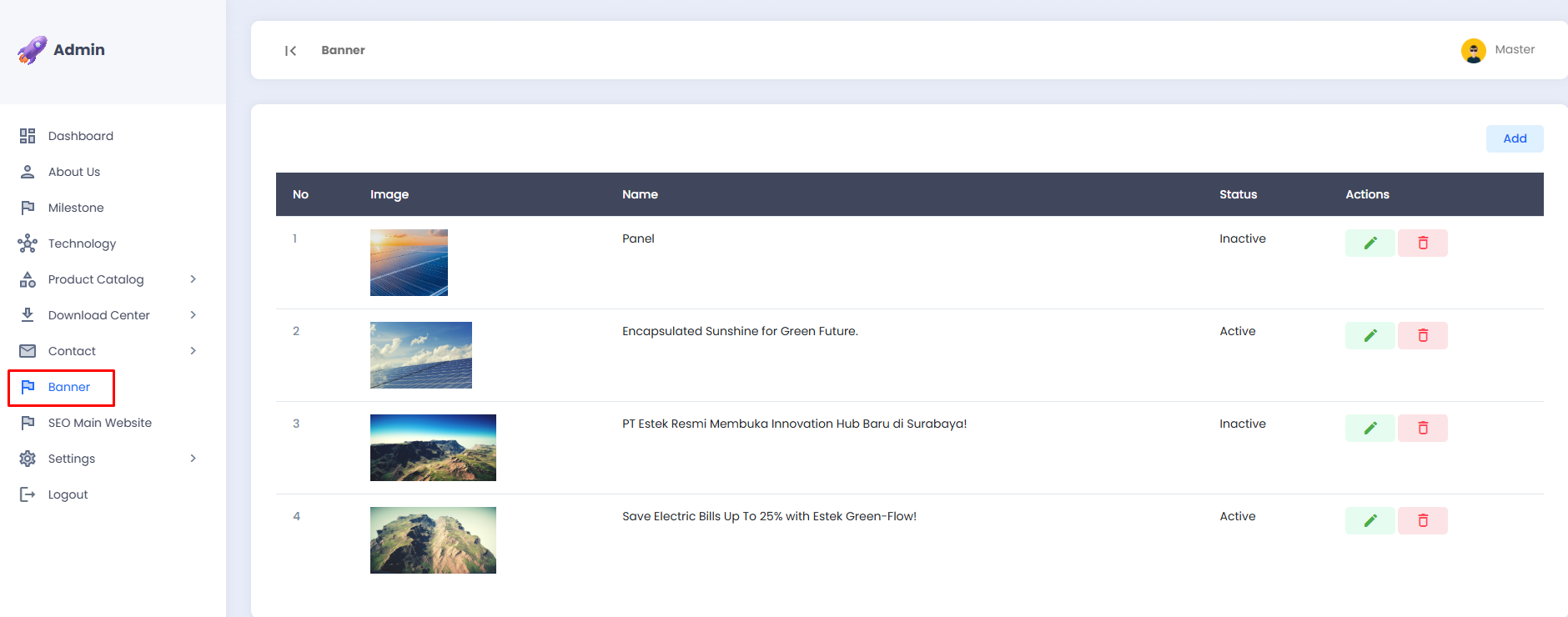
The following is the Banner section as displayed on the landing page:

📋 Banner List
The banner list is displayed in a table with the following information:
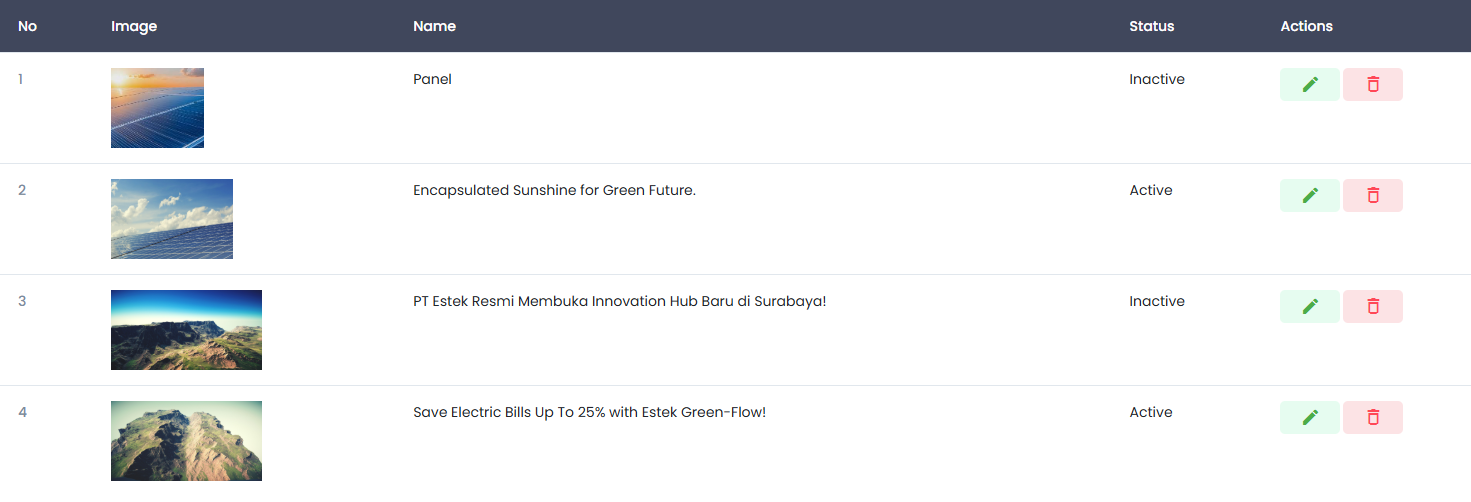
| Column | Description |
|---|---|
| No | Sequential number of the banner |
| Image | The banner image displayed as a slider |
| Name | The name or title of the banner |
| Status | The banner status, either Active (displayed) or Inactive (hidden) |
| Actions | Buttons to edit or delete the banner |
➕ Adding a Banner
- Click the Add button in the top-right corner of the page.
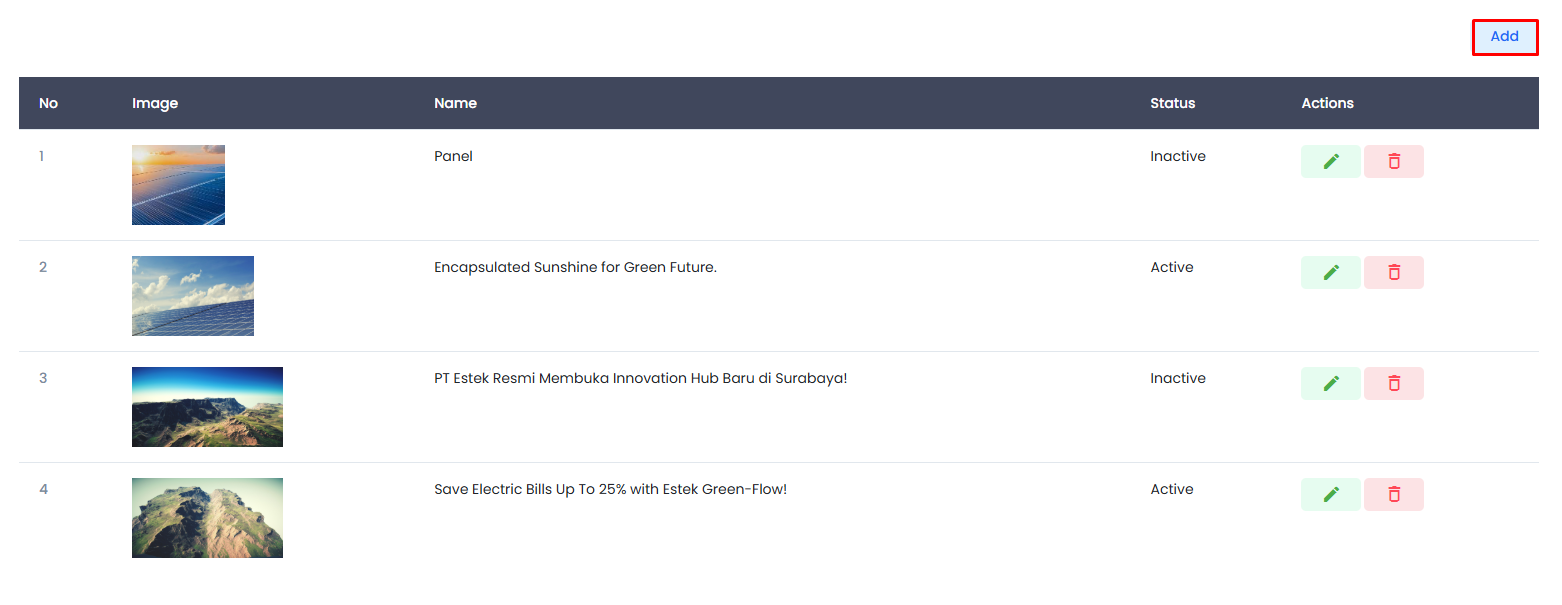
- You will be directed to the Banner | Add page.
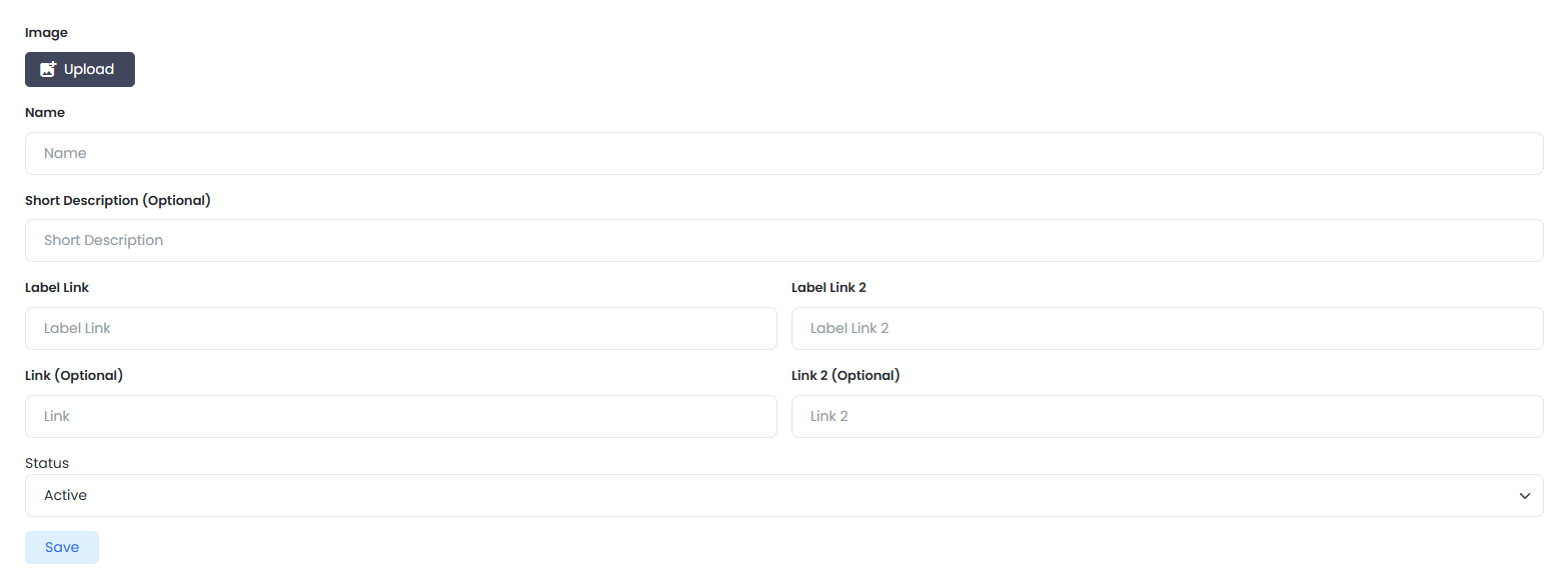
- Complete the following form:
- Image, click the Upload button to upload the banner image.
- Name, the name or title of the banner.
- Short Description, a brief description displayed below the title, this field is optional.
- Label Link, the text for the first button displayed on the banner.
- Link, the destination URL for the first button, this field is optional.
- Label Link 2, the text for the second button displayed on the banner.
- Link 2, the destination URL for the second button, this field is optional.
- Status, select Active to display or Inactive to hide the banner.
- Click the Save button to save the new banner.
Use high-resolution images with a landscape ratio to ensure the banner displays optimally across all screen sizes.
Banners with an Inactive status will not be displayed on the landing page, however the data remains saved and can be reactivated at any time.
✏️ Editing a Banner
- Click the ✏️ edit icon (green) in the Actions column of the banner row you wish to modify.
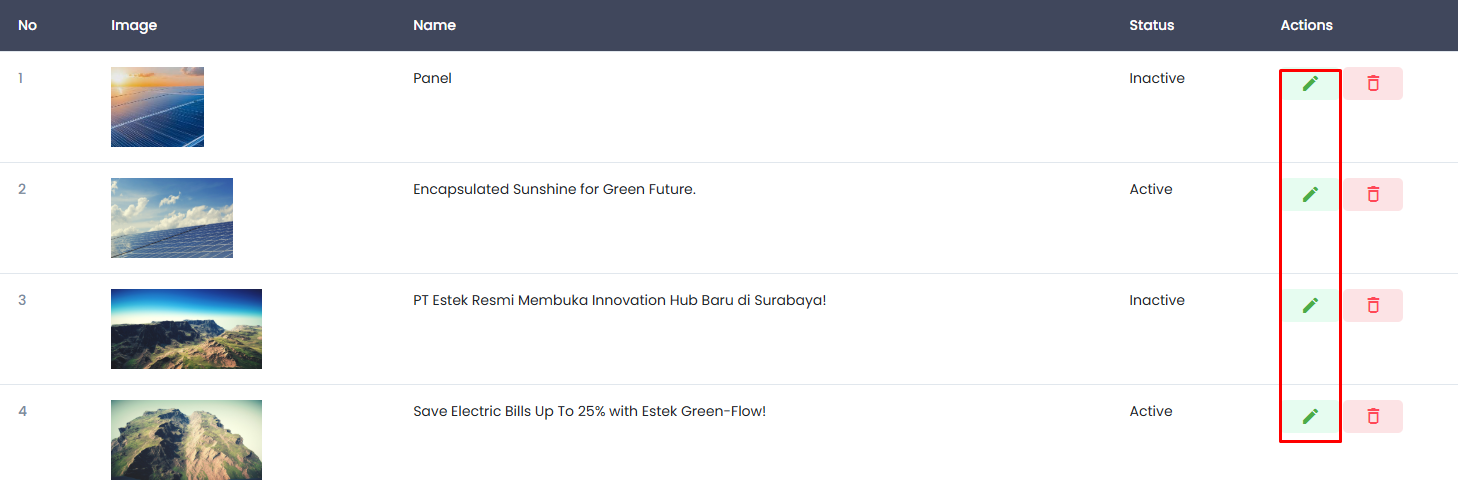
- You will be directed to the Banner | Edit page.
- There are language tabs (English, Indonesian, Chinese) available to adjust the content for the selected language.
- Update the Image, Label Link, Link, Status, Banner Name, or Short Description as needed.
- Click the Save button to save the changes.
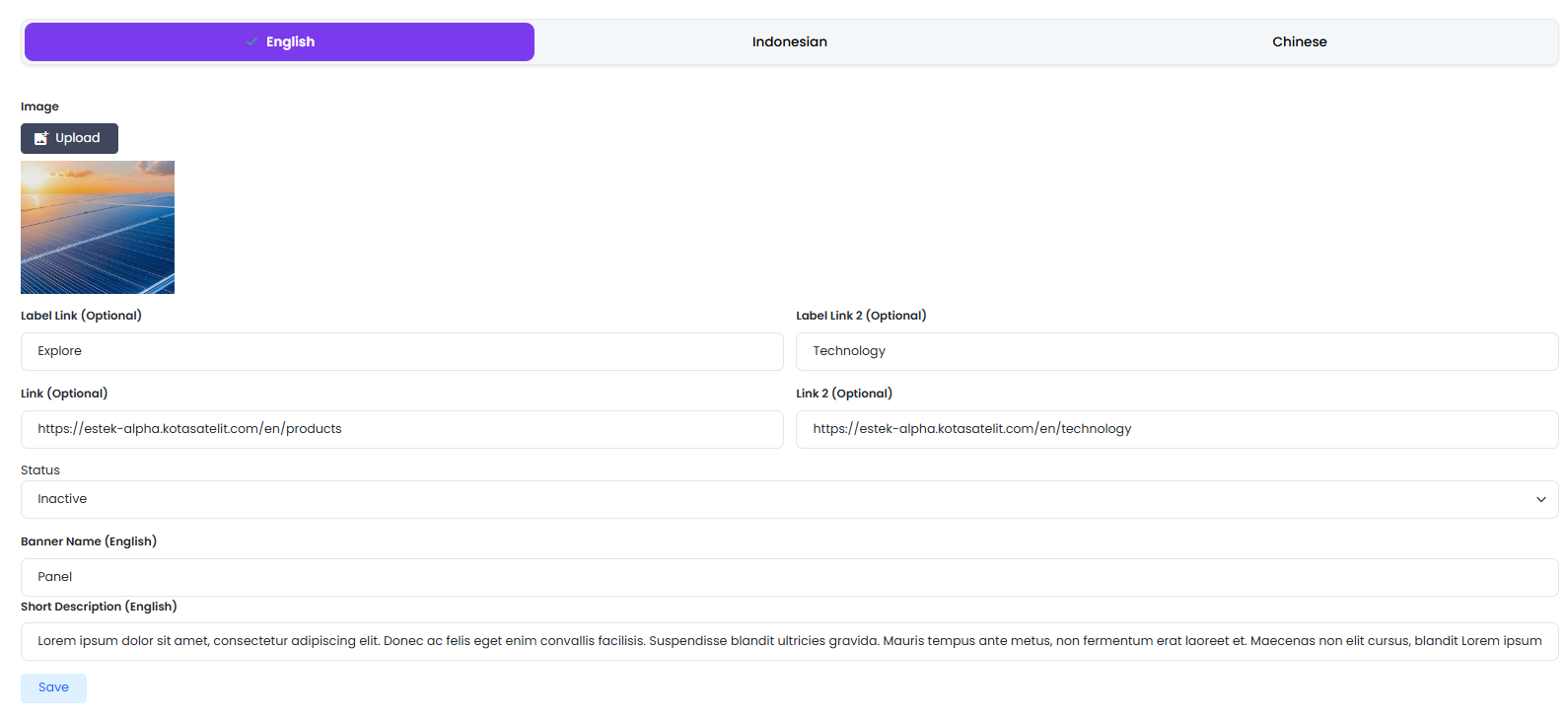
Content changes on each language tab are independent of one another. Please ensure that you fill in the content for all language tabs so that the banner displays correctly across all language versions of the landing page.
🗑️ Deleting a Banner
- Click the 🗑️ delete icon (red) in the Actions column of the banner row you wish to remove.
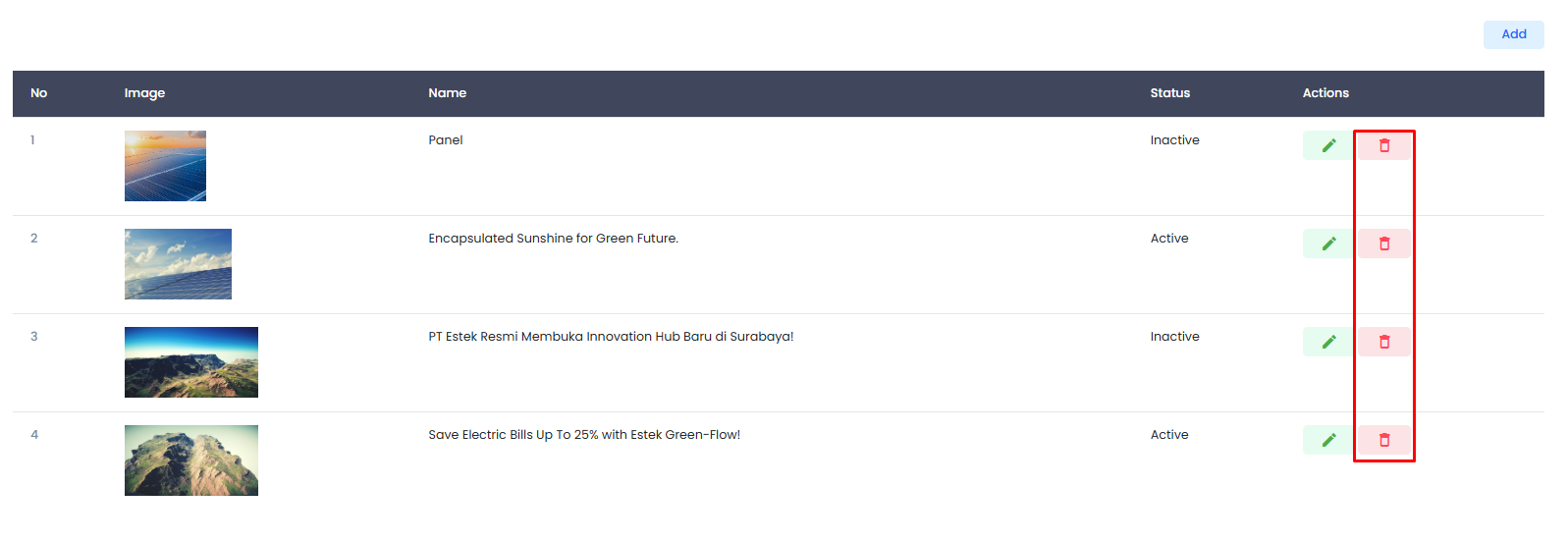
- A confirmation popup will appear.
- Confirm the deletion to proceed, or cancel if you wish to abort.
Deleted banner data cannot be recovered. If the banner may still be needed in the future, consider changing its status to Inactive rather than deleting it.