File Download
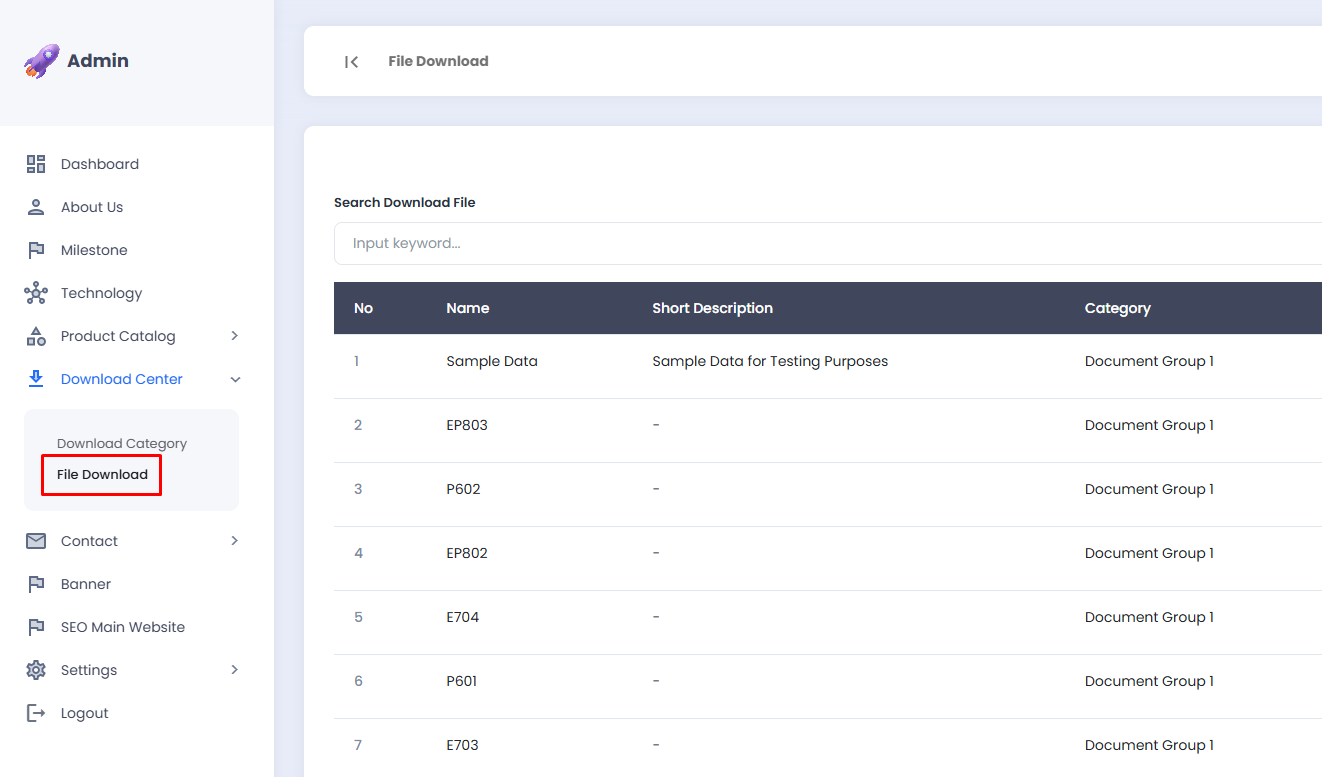
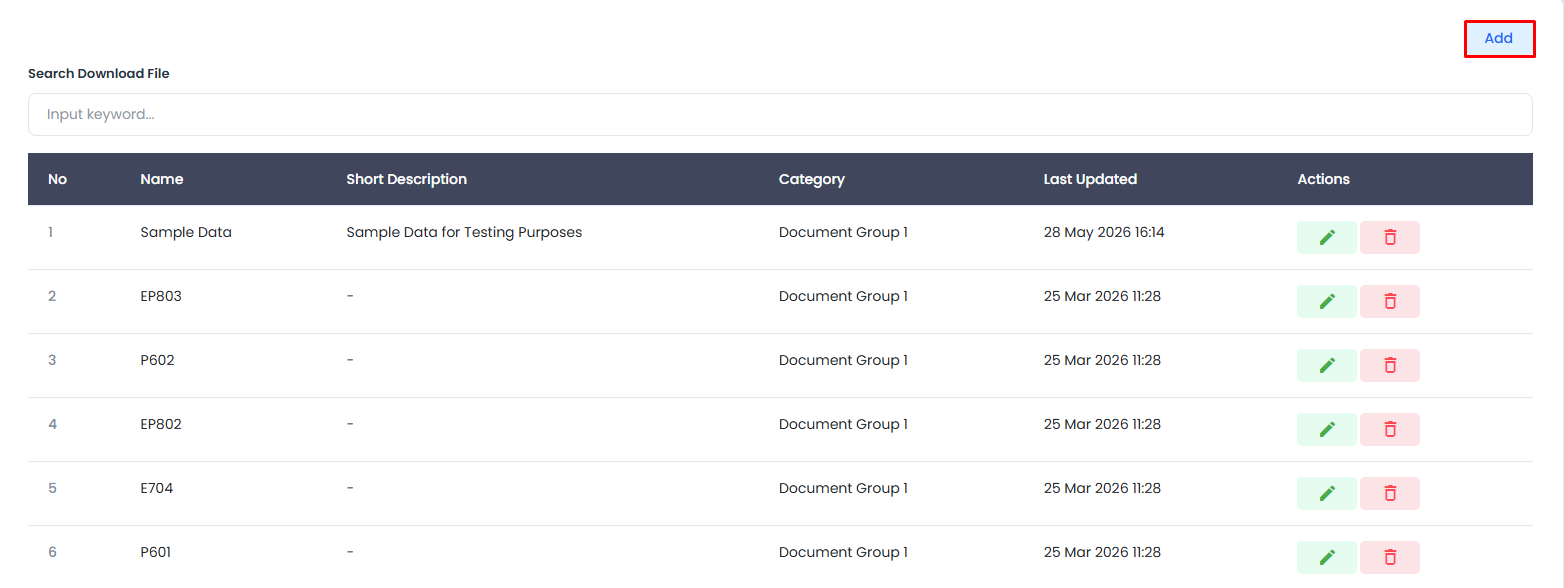
The File Download sub-menu is used to manage the list of files that can be downloaded by visitors through the Download Center page on the landing page. Each file is equipped with a name, category, and short description as additional information.
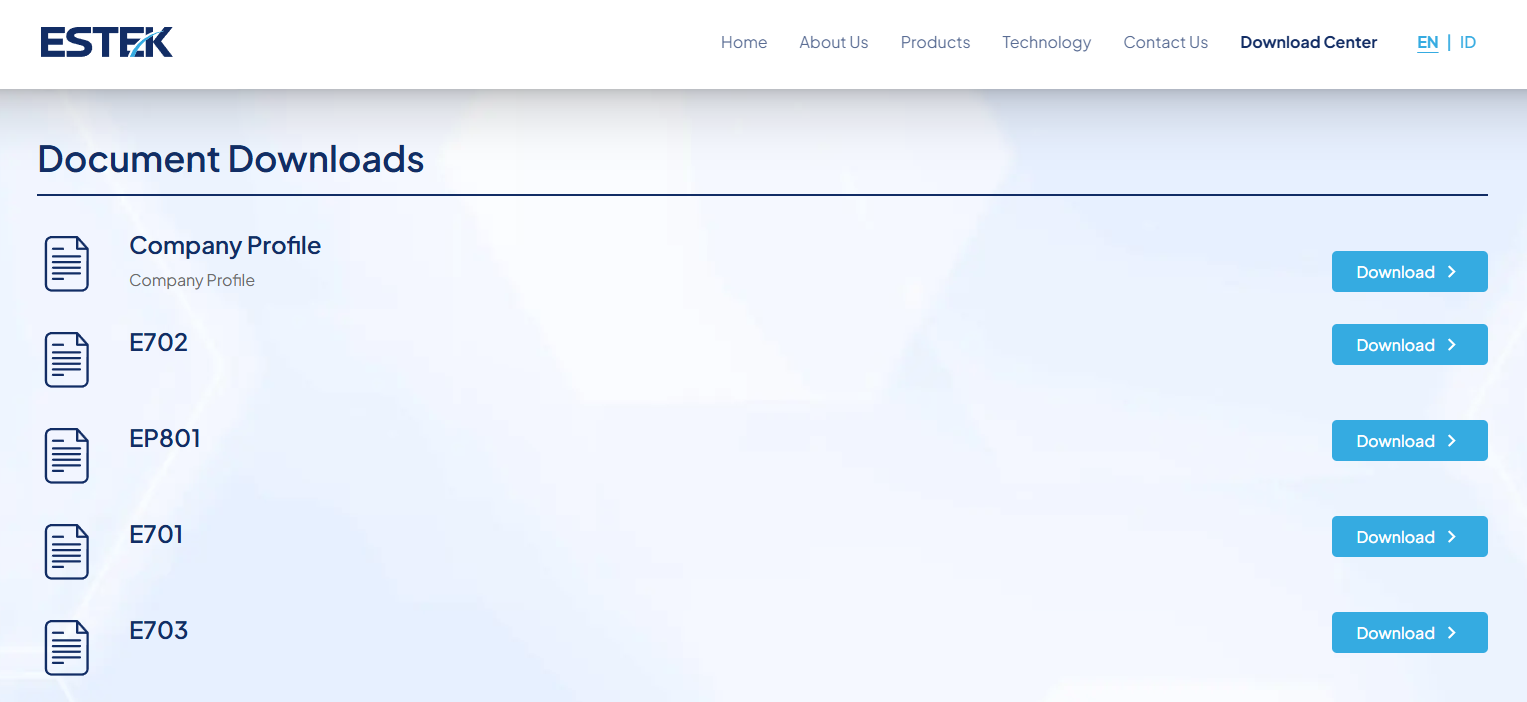
The following is the File Download page as displayed on the landing page:
🔎 Searching for a File Download
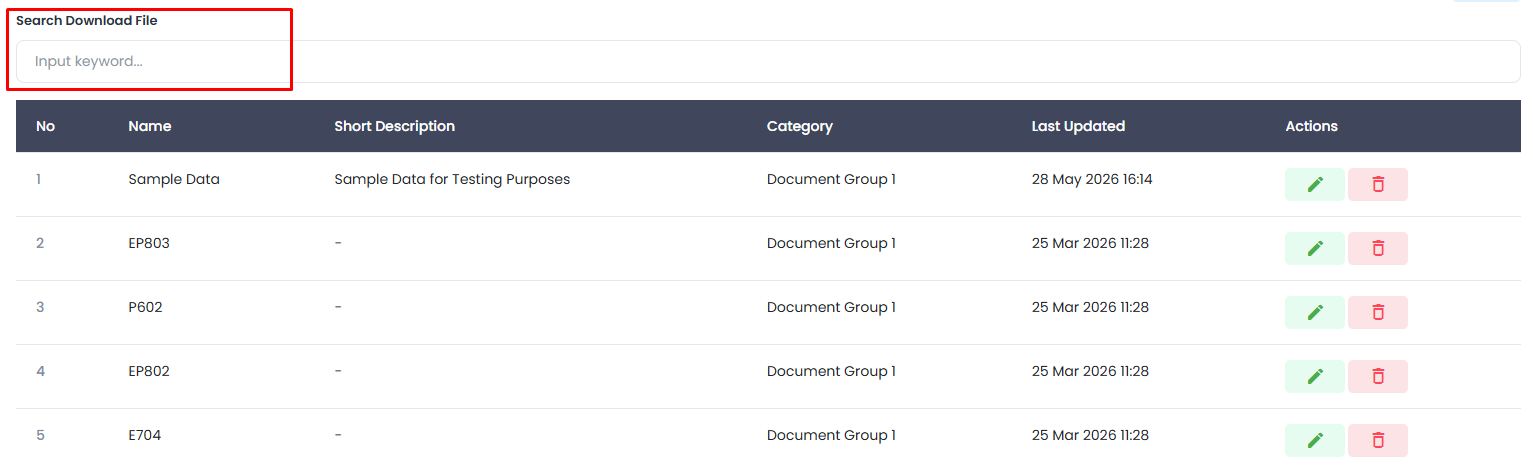
Use the Search Download File feature to quickly locate a specific file.
- Click the Search Download File field at the top of the table.
- Enter the keyword of the file name you wish to find.
- The file list will be automatically filtered based on the entered keyword.
📋 File Download List
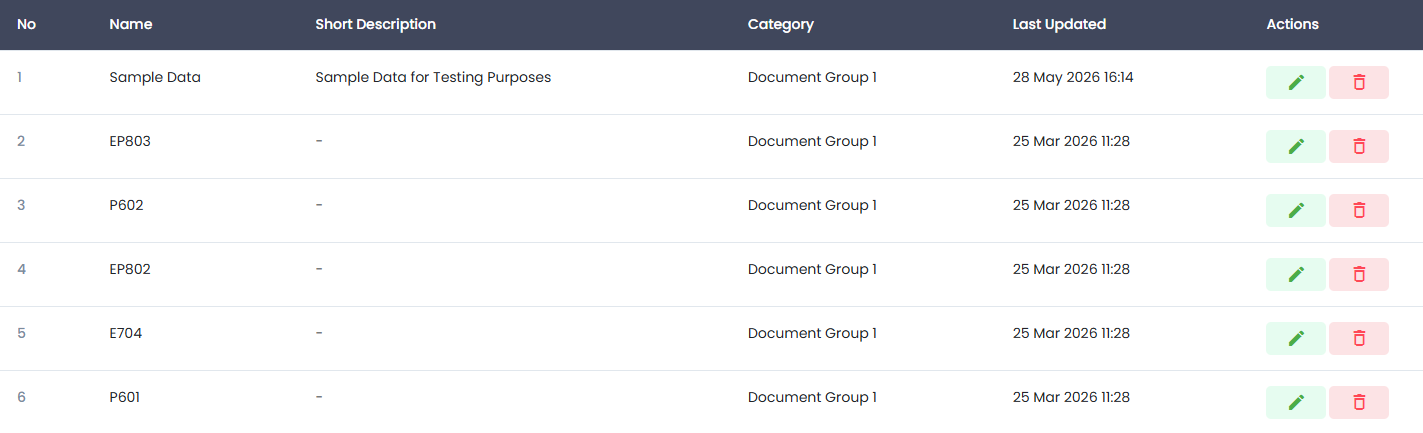
The downloadable file list is displayed in a table with the following information:
| Column | Description |
|---|---|
| No | Sequential number of the file |
| Name | Name of the downloadable file |
| Short Description | A brief description of the file, optional |
| Category | The category under which the file is grouped |
| Last Updated | Date and time the file was last updated |
| Actions | Buttons to edit or delete the file |
➕ Adding a File Download
- Click the Add button in the top-right corner of the page.
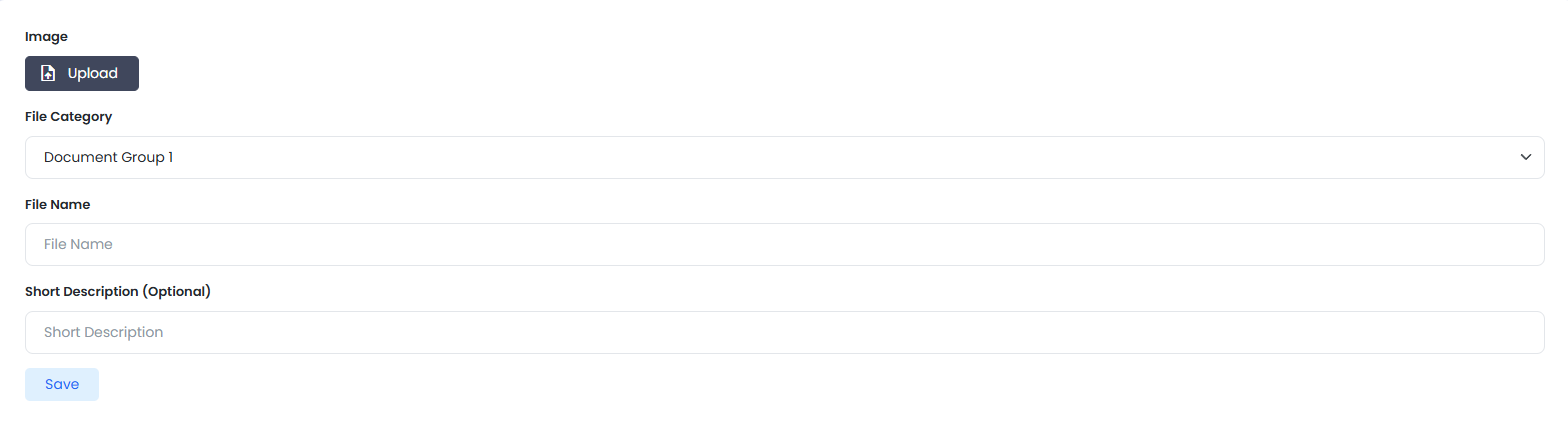
- You will be directed to the File Download | Add page.
- Click the Upload button to upload the file to be made available for download.
- Select the File Category that corresponds to the relevant document group.
- Enter the file name in the File Name field as it will appear on the landing page.
- Enter a brief description in the Short Description field if needed, this field is optional.
- Click the Save button to save the new file.
tip
Use a descriptive and easy-to-understand file name so that visitors know the content of the document before downloading it.
✏️ Editing a File Download
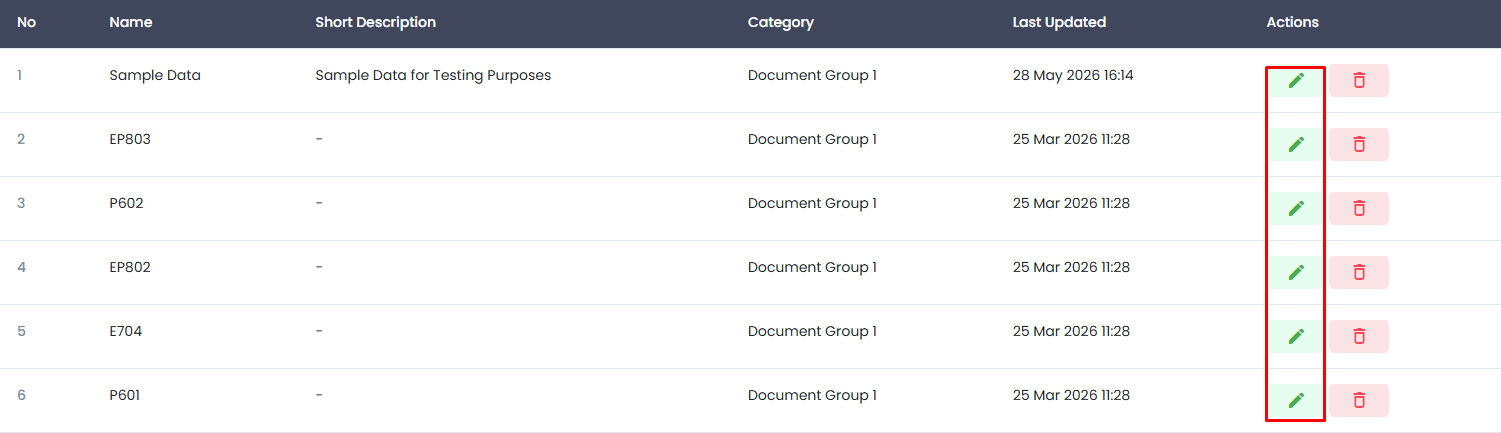
- Click the ✏️ edit icon (green) in the Actions column of the file row you wish to modify.
- You will be directed to the File Download | Edit page.
- Update the File, File Category, File Name, or Short Description as needed.
- Select the language tab you wish to update to adjust the content for the corresponding language.
- Click the Save button to save the changes.
🗑️ Deleting a File Download
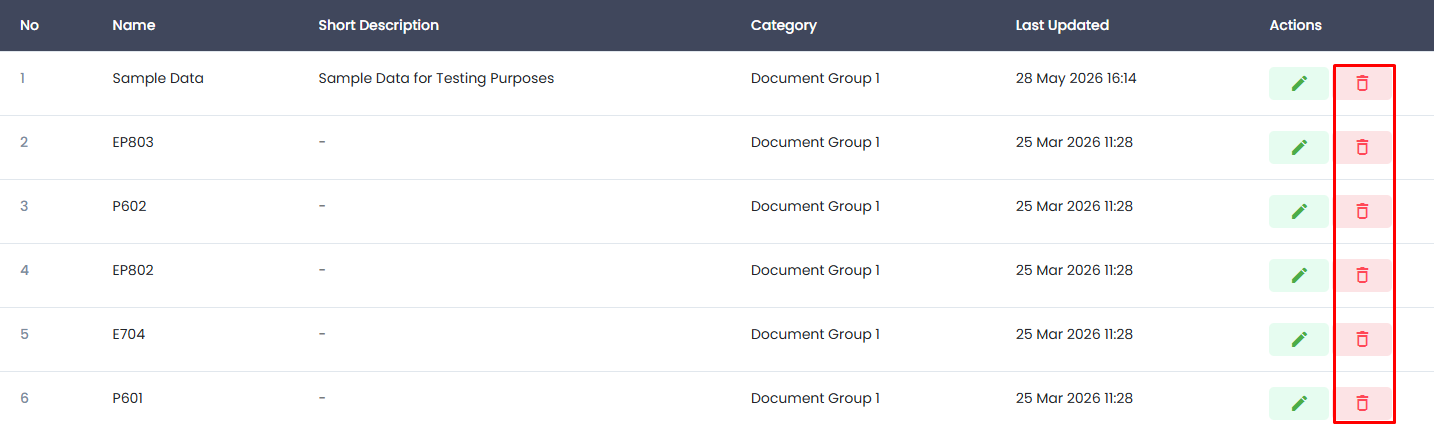
- Click the 🗑️ delete icon (red) in the Actions column of the file row you wish to remove.
- A confirmation popup will appear.
- Confirm the deletion to proceed, or cancel if you wish to abort.
danger
Deleted file data cannot be recovered. Please ensure that the file is no longer needed before proceeding with the deletion.