Settings
The Settings menu is used to manage the admin panel system configuration, including the Role, Admin, and Authorization settings. This menu consists of three interrelated sub-menus for managing admin panel user access rights.
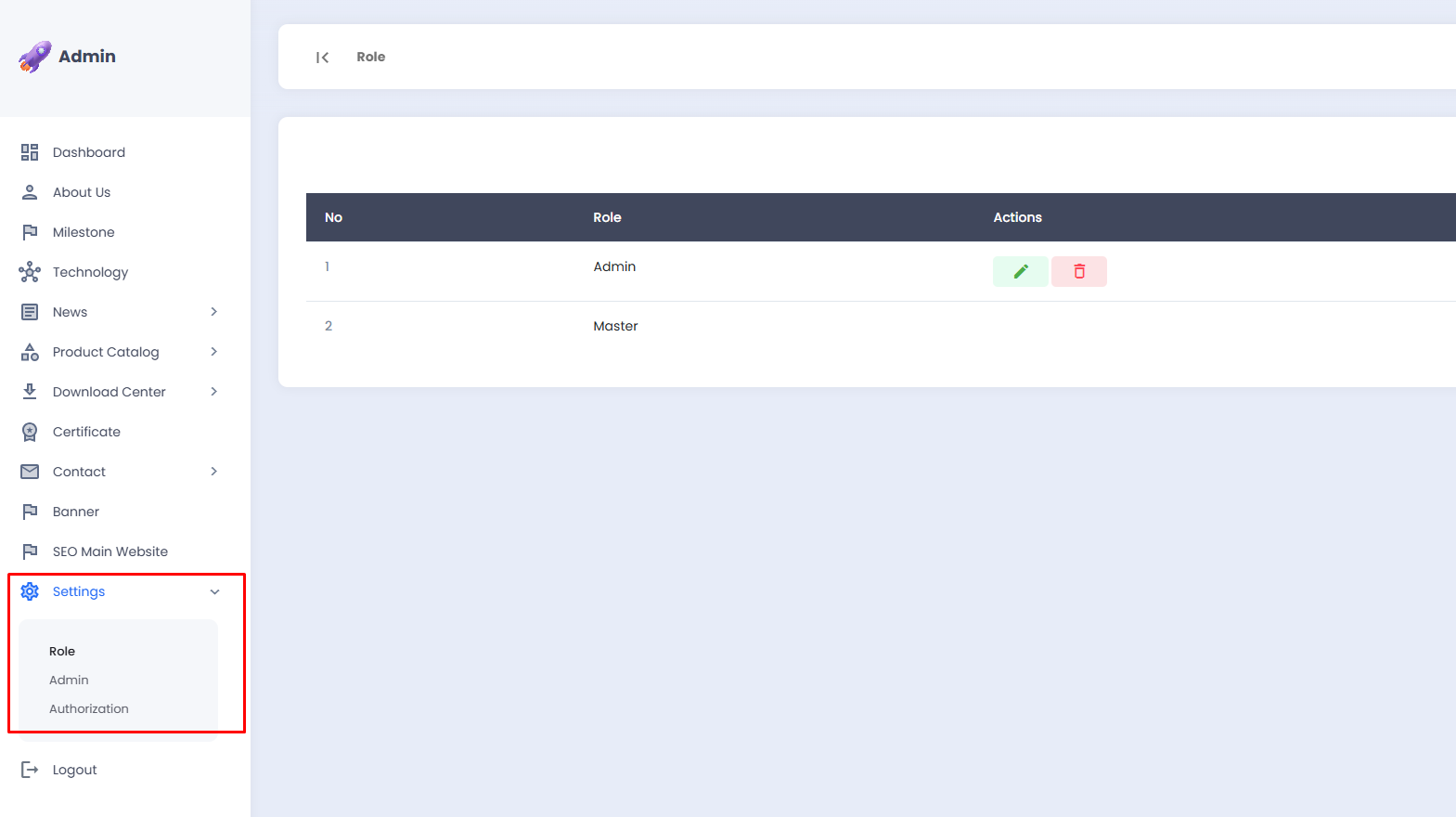
Role
The Role sub-menu is used to manage the role names that serve as the basis for granting access rights to admin panel users. Each user will be assigned one role that determines which menus and features they are permitted to access.
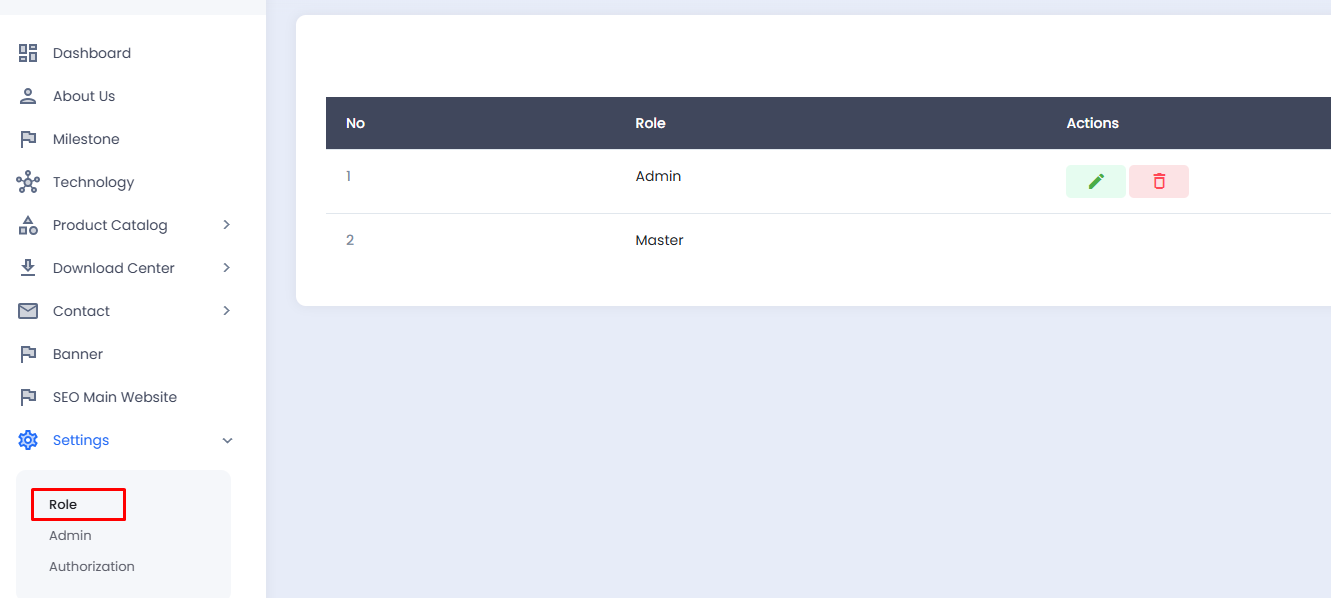
📋 Role List
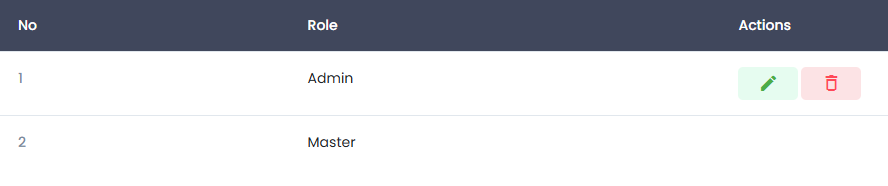
The role list is displayed in a table with the following information:
| Column | Description |
|---|---|
| No | Sequential number of the role |
| Role | The name of the user role, for example Admin or Master |
| Actions | Buttons to edit or delete the role |
The Master role does not have an Actions button as it is the highest-level system role that is permanent and cannot be modified or deleted.
➕ Adding a Role
- Click the Add button in the top-right corner of the page.

- You will be directed to the Role | Add page.
- Enter the role name in the Role field.
- Click the Save button to save the new role.
✏️ Editing a Role
- Click the ✏️ edit icon (green) in the Actions column of the role row you wish to modify.
- You will be directed to the Role | Edit page.
- Update the Role name as needed.
- Click the Save button to save the changes.
🗑️ Deleting a Role
- Click the 🗑️ delete icon (red) in the Actions column of the role row you wish to remove.
- A confirmation popup will appear.
- Confirm the deletion to proceed, or cancel if you wish to abort.
Please ensure that the role to be deleted is not currently assigned to any user. Deleting an actively used role may cause those users to lose access to the admin panel. Deleted data cannot be recovered.