Admin
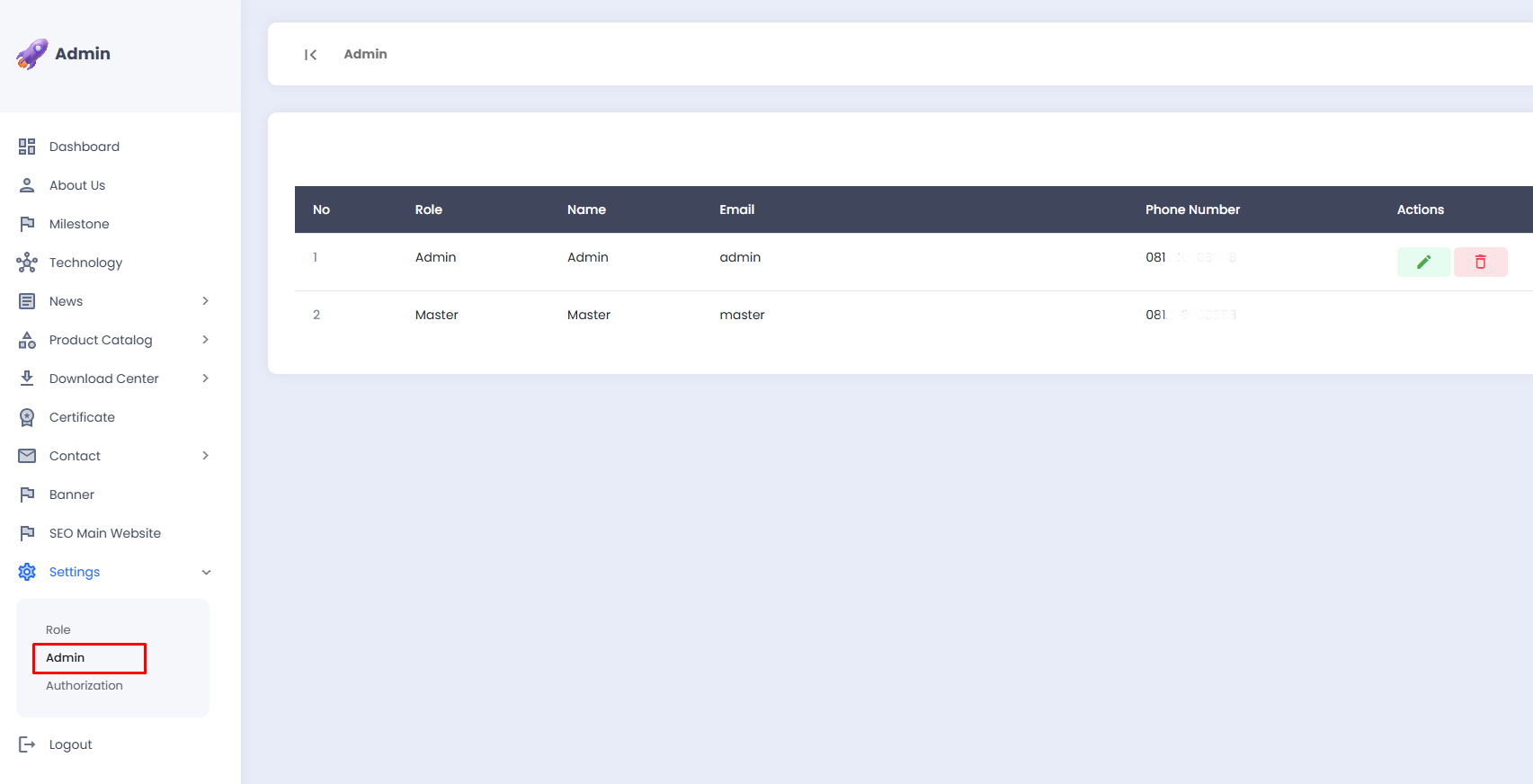
The Admin sub-menu is used to manage user accounts that have access to the landing page admin panel. Each account includes the user's role, name, email, and phone number as identifying information.
📋 Admin Account List
The admin account list is displayed in a table with the following information:

| Column | Description |
|---|---|
| No | Sequential number of the account |
| Role | The role assigned to the account |
| Name | The name of the user |
| The email address used for login | |
| Phone Number | The user's phone number |
| Actions | Buttons to edit or delete the account |
Accounts with the Master role do not have an Actions button as they represent the primary system account that is permanent and cannot be modified or deleted.
➕ Adding an Admin Account
- Click the Add button in the top-right corner of the page.

- You will be directed to the Admin | Add page.
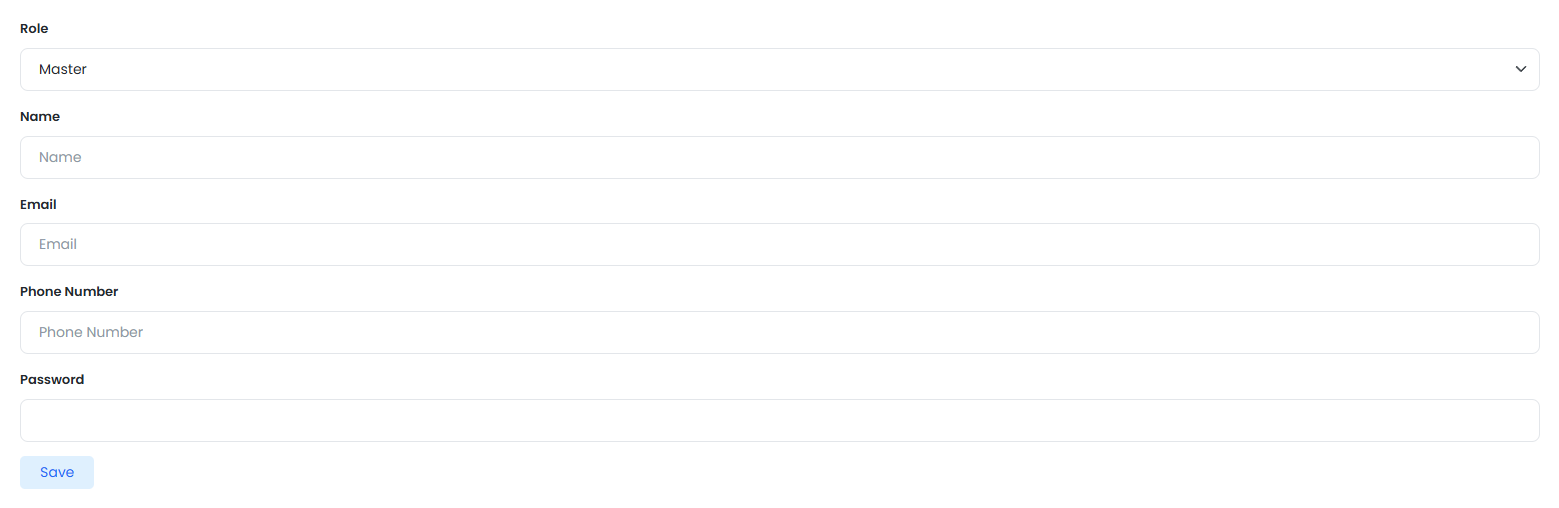
- Complete the following form:
- Role, select the role to be assigned to the new account.
- Name, the full name of the user.
- Email, the email address to be used for login.
- Phone Number, the user's phone number.
- Password, the password for logging in to the admin panel.
- The password must be a minimum of 6 characters.
- Click the Save button to save the new account.
Use an active and easily memorable email address. Ensure that the password is sufficiently strong by combining letters, numbers, and special characters.
✏️ Editing an Admin Account
A. Editing Account Data
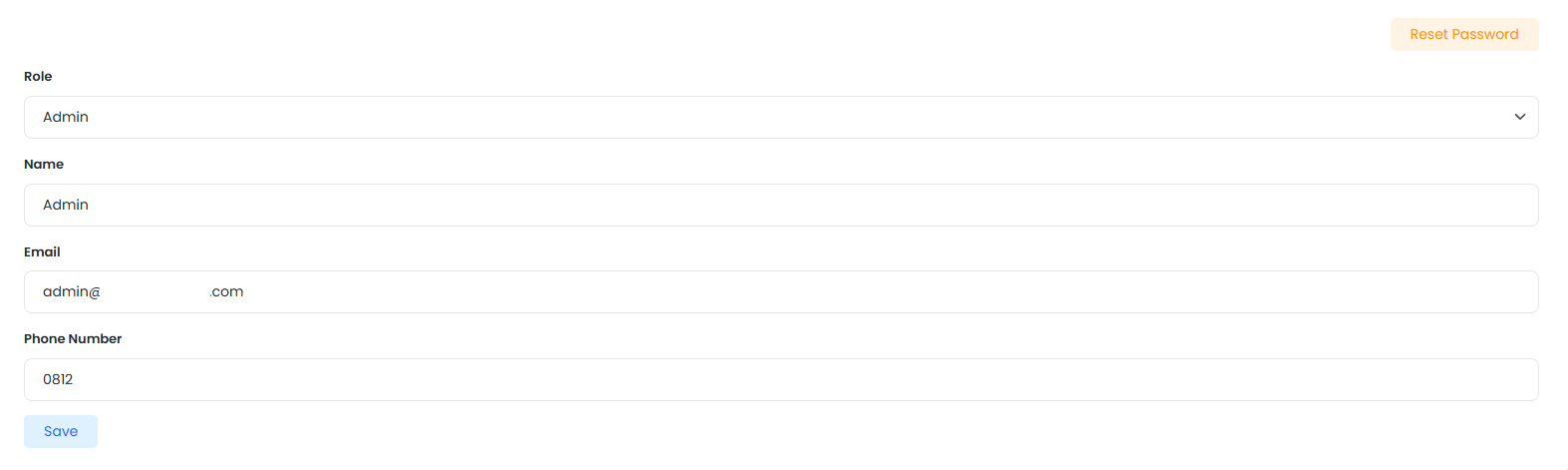
- Click the ✏️ edit icon (green) in the Actions column of the account row you wish to modify.

- You will be directed to the Admin | Edit page.
- Update the Role, Name, Email, or Phone Number as needed.
- Click the Save button to save the changes.
B. Resetting a Password
- On the Admin | Edit page, click the Reset Password button in the top-right corner.
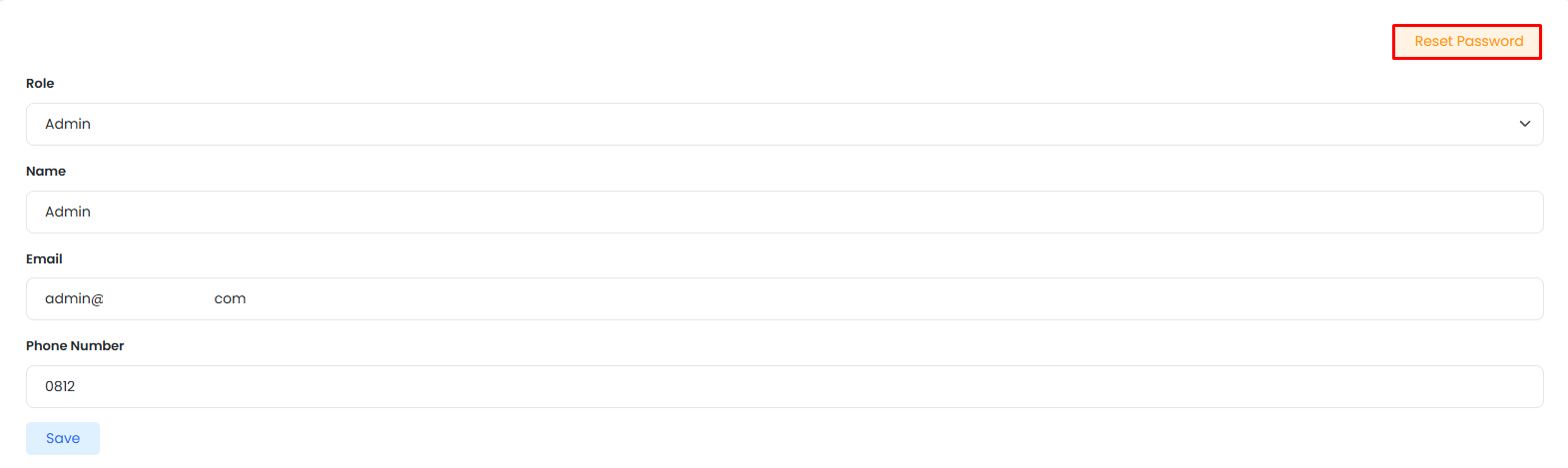
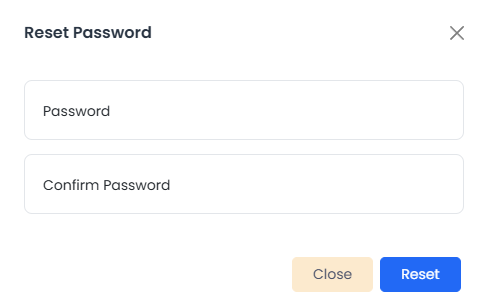
- A Reset Password popup will appear.
- Enter the new password in the Password field.
- Enter the new password again in the Confirm Password field to confirm.
- Click the Reset button to save, or Close to cancel.
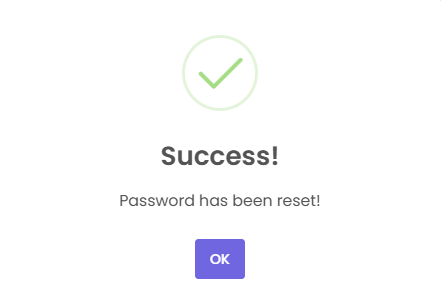
- Upon success, a notification "Password has been reset!" will appear.
Please ensure that the relevant user is informed of their new password after a reset has been performed, to prevent them from losing access to the admin panel.
🗑️ Deleting an Admin Account
- Click the 🗑️ delete icon (red) in the Actions column of the account row you wish to remove.

- A confirmation popup will appear.
- Confirm the deletion to proceed, or cancel if you wish to abort.
Please ensure that the account to be deleted is no longer needed. Deleted account data cannot be recovered, and the user will immediately lose access to the admin panel.