Authorization
The Authorization sub-menu is used to manage the access rights of each role to the menus available in the admin panel. Through Authorization, you can determine which menus can be accessed, added, edited, or deleted by each user role.
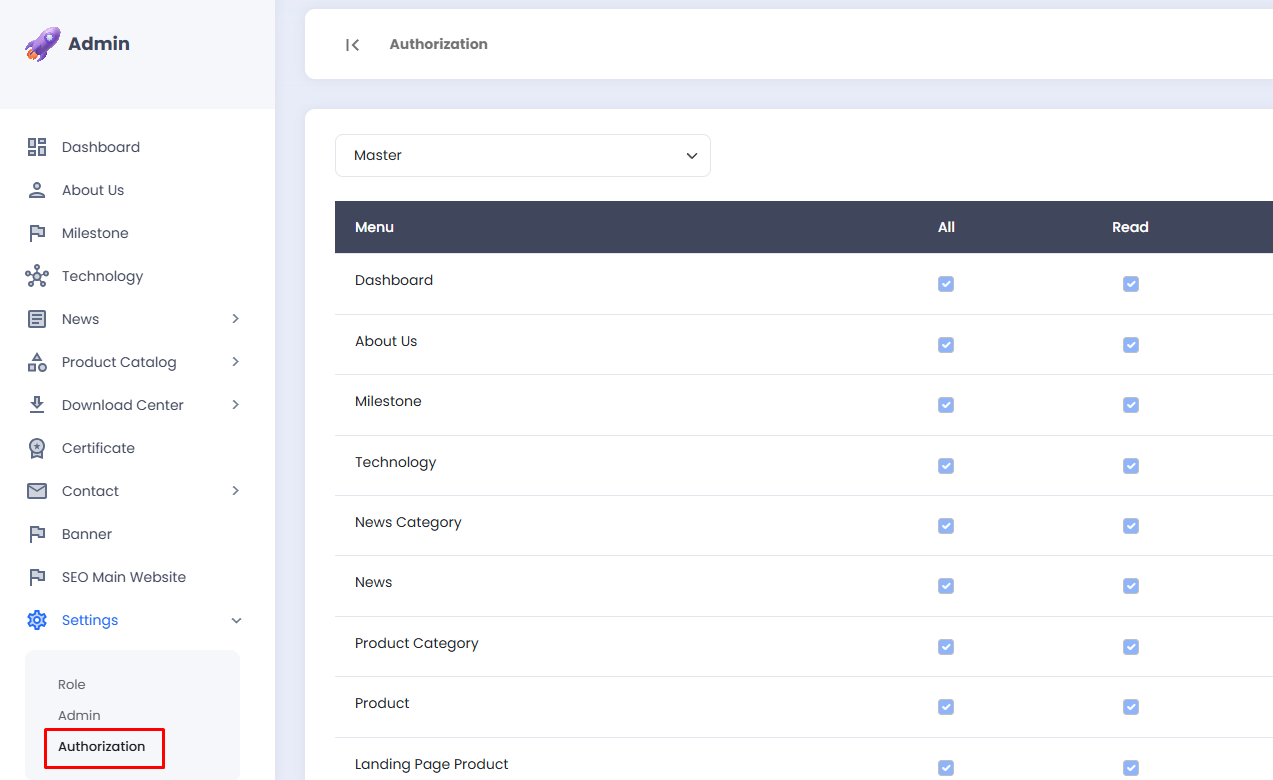
To create a new role before configuring its access rights, please follow the guide on the Role page.
📋 Access Rights Structure
Access rights are configured per menu in a checkbox table with the following columns:
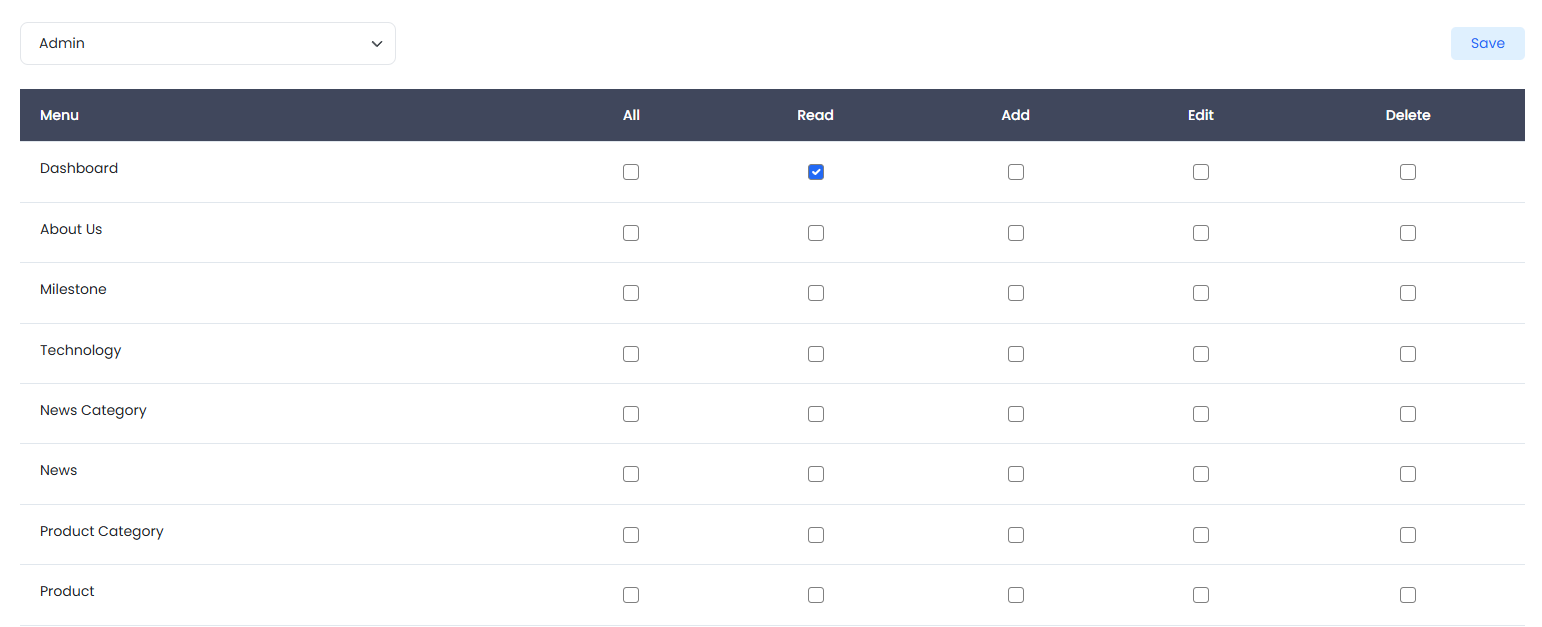
| Column | Description |
|---|---|
| Menu | The name of the menu available in the admin panel |
| All | Grants all access rights for that menu at once |
| Read | Permission to view data in that menu |
| Add | Permission to add new data in that menu |
| Edit | Permission to modify data in that menu |
| Delete | Permission to delete data in that menu |
The Master role has full access rights to all menus and cannot be modified. Authorization settings only apply to roles other than Master.
✏️ Configuring Authorization
- Select the Role whose access rights you wish to configure via the dropdown at the top of the page.
- The access rights table will automatically display the current settings for the selected role.
- Check or uncheck the All, Read, Add, Edit, or Delete columns for each menu as needed.
- Check the All column to grant all access rights for that menu at once.
- Check individual columns to assign more specific access rights.
- Click the Save button in the top-right corner to apply the changes.
Apply the principle of least privilege, meaning only grant the access rights that are strictly necessary for each role. This is essential for maintaining the security and integrity of data within the admin panel.
Access right changes will take effect immediately upon saving. Please ensure that all settings are correct before clicking Save to prevent users with that role from losing access they are entitled to.